Admin UI
The built-in web UI: watch queues in real time, inspect and enqueue jobs, manage dead letters and edit configuration from the browser.
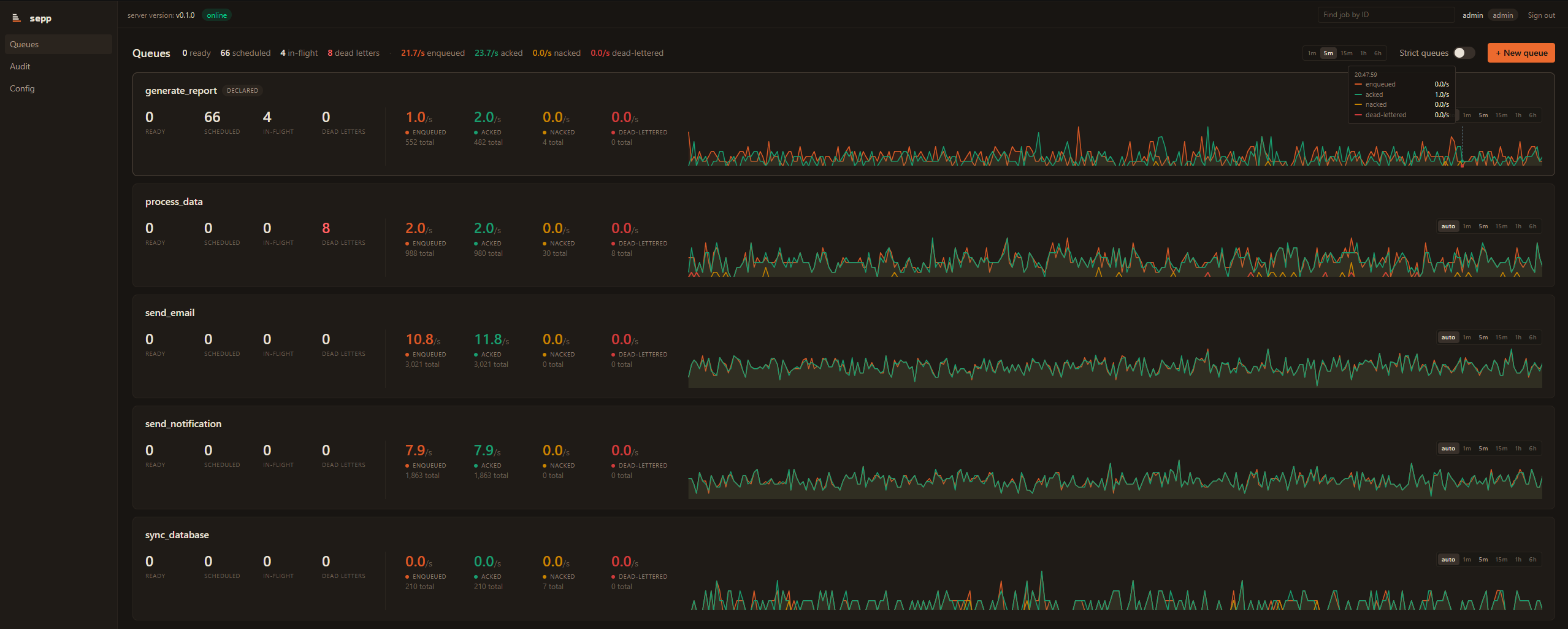
Sepp ships with a web admin UI embedded in the binary. It streams a live dashboard of every queue and lets you inspect jobs, enqueue new ones, requeue dead letters and edit the server configuration, all from the browser. There is nothing extra to install or deploy.
Open it
The UI is on by default, on its own HTTP listener separate from the gRPC port. Start the server and open http://localhost:9465.
The default bind is 127.0.0.1:9465, so out of the box the UI is reachable only from the machine the server runs on and no login is required. Binding anything else requires named keys with roles and the server refuses to start without them. For remote access serve the listener over HTTPS by setting tls_cert_path and tls_key_path under [admin] or keep it plain HTTP behind a TLS-terminating reverse proxy or an SSH tunnel. See admin UI authentication for keys, roles and sessions.
To turn the UI off, set in sepp.toml:
[admin]
enabled = false
In Docker
The image transforms the default config at build time to bind 0.0.0.0:9465 with a demo admin key, so publishing the port is enough:
docker run --rm \
  -p 50051:50051 -p 9465:9465 \
  -v sepp-data:/sepp/sepp-data \
  ghcr.io/sepp-org/sepp:latest
Open http://localhost:9465 and log in with name admin and key admin. Change this before exposing the port on a production network.
To change keys, generate a config with docker run --rm ghcr.io/sepp-org/sepp:latest config example, edit the [admin] section and mount it:
docker run --rm \
  -p 50051:50051 -p 9465:9465 \
  -v "$(pwd)/sepp.toml:/etc/sepp/sepp.toml" \
  -v sepp-data:/sepp/sepp-data \
  ghcr.io/sepp-org/sepp:latest
What you can do
Watch queues live
The dashboard shows a card per queue with its depths (ready, scheduled, in-flight, dead-lettered), per-second enqueue and ack rates and a throughput sparkline, streamed over SSE. A global picker sets the sparkline window from 1 minute to 6 hours, each card can override it, and admin.stats_history_ms controls how much history the server keeps.
Inspect jobs
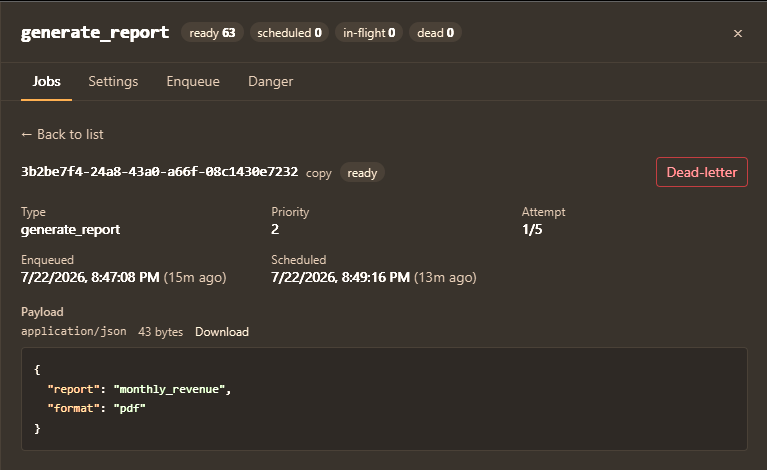
Open a queue and page through its jobs by state. A job's detail view shows every field, the custom map and the payload decoded by its encoding hint (pretty-printed JSON, text or a hex dump).
Enqueue jobs
Every queue has an enqueue form covering the full request: payload, priority, scheduling, idempotency key and custom fields. See enqueue from the admin UI.
Manage dead letters
List a queue's dead letters with their cause and last failure reason, then requeue the ones worth another go or delete the rest. Unlike a drain, looking is not destructive.
Manage queues
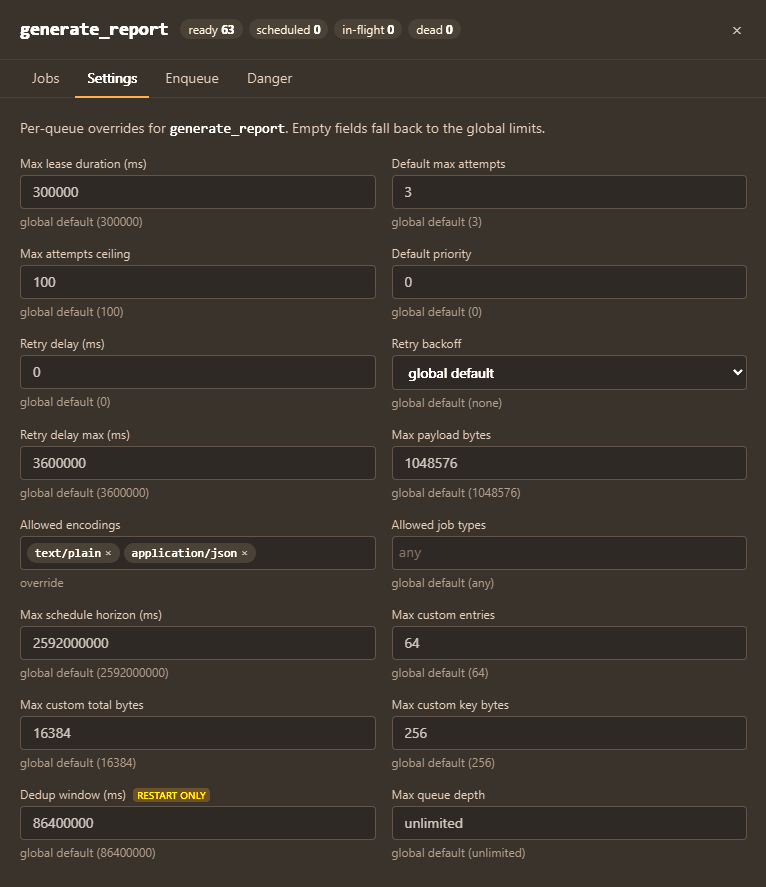
Create a queue, edit its per-queue overrides, and purge or delete it.
Edit configuration
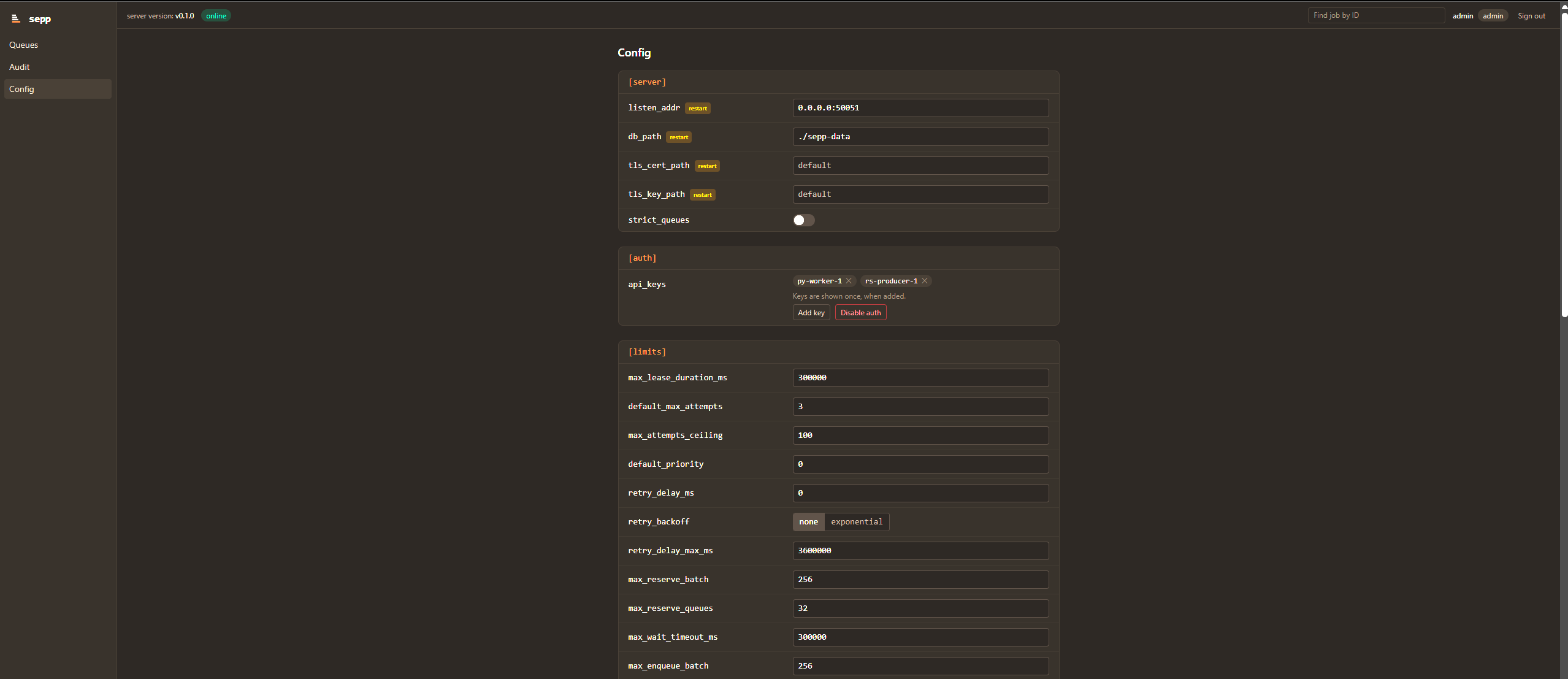
The config editor writes sepp.toml through the same hot-reload path you would use by hand, preserving comments. Fields that need a restart are flagged, and fields pinned by SEPP_ environment variables are locked.
Review the audit log
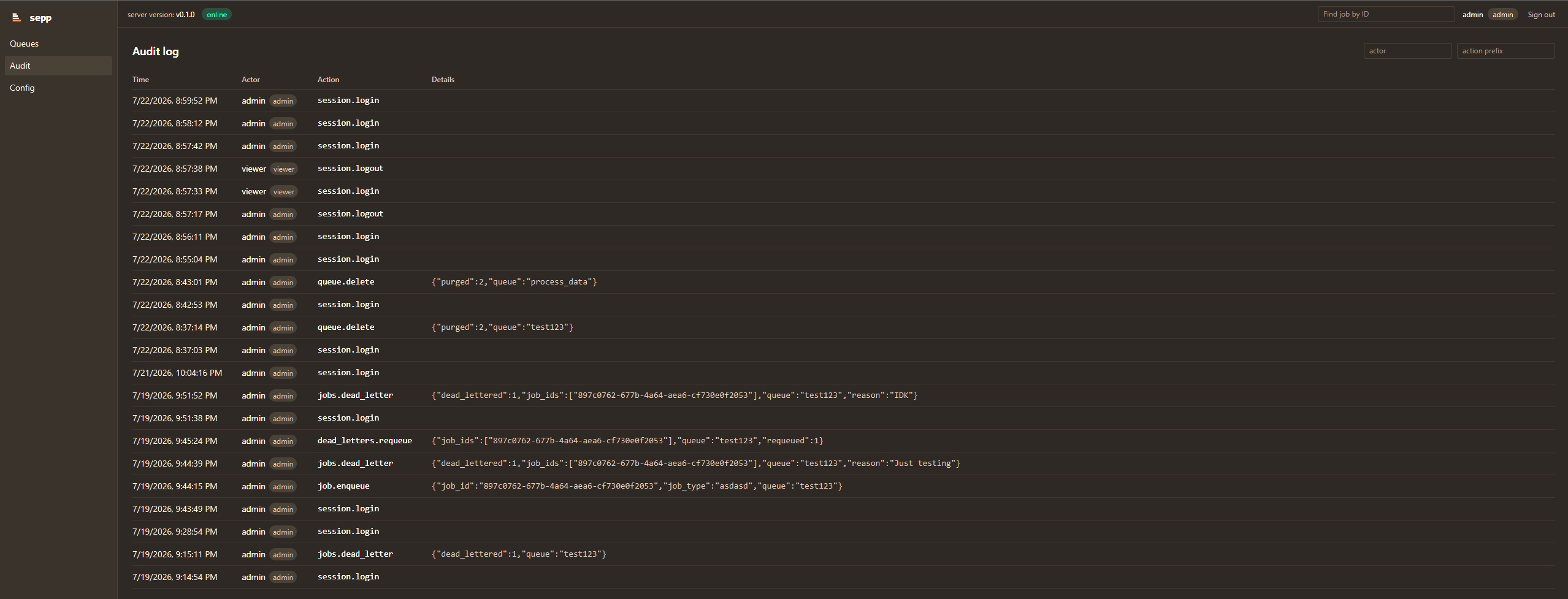
Every admin action with who did it, when and which jobs it touched, streamed live and pageable back to the first entry, with actor and action filters. Admin role only. See the audit log.
See also
- Enqueue from the admin UI: the enqueue form field by field.
- Authentication & TLS: admin keys, roles and the audit log.
- Configuration: the file the config editor writes.
- Quickstart: enqueue and process your first job.